Step 1: Describe it, or drop in a flyer
Type it as you’d tell a friend, or attach the poster as a photo or a PDF of up to two pages. It reads the title, date, time, venue and prices off it.
Products · Assistant Every plan
Describe your event in a sentence, or drop in a flyer. The Assistant drafts the whole thing: title, date and time, venue, ticket types, prices and places. You check it and publish.
10 messages a month on Free, 100 on Pro and 300 on Team. Pro and Team are open now: upgrade any time in Settings › Plan. Limited-time offer: A$1 for your first year (first 100 organisers), then A$29/month for Pro or A$79/month for Team. Cancel anytime.
Create an event
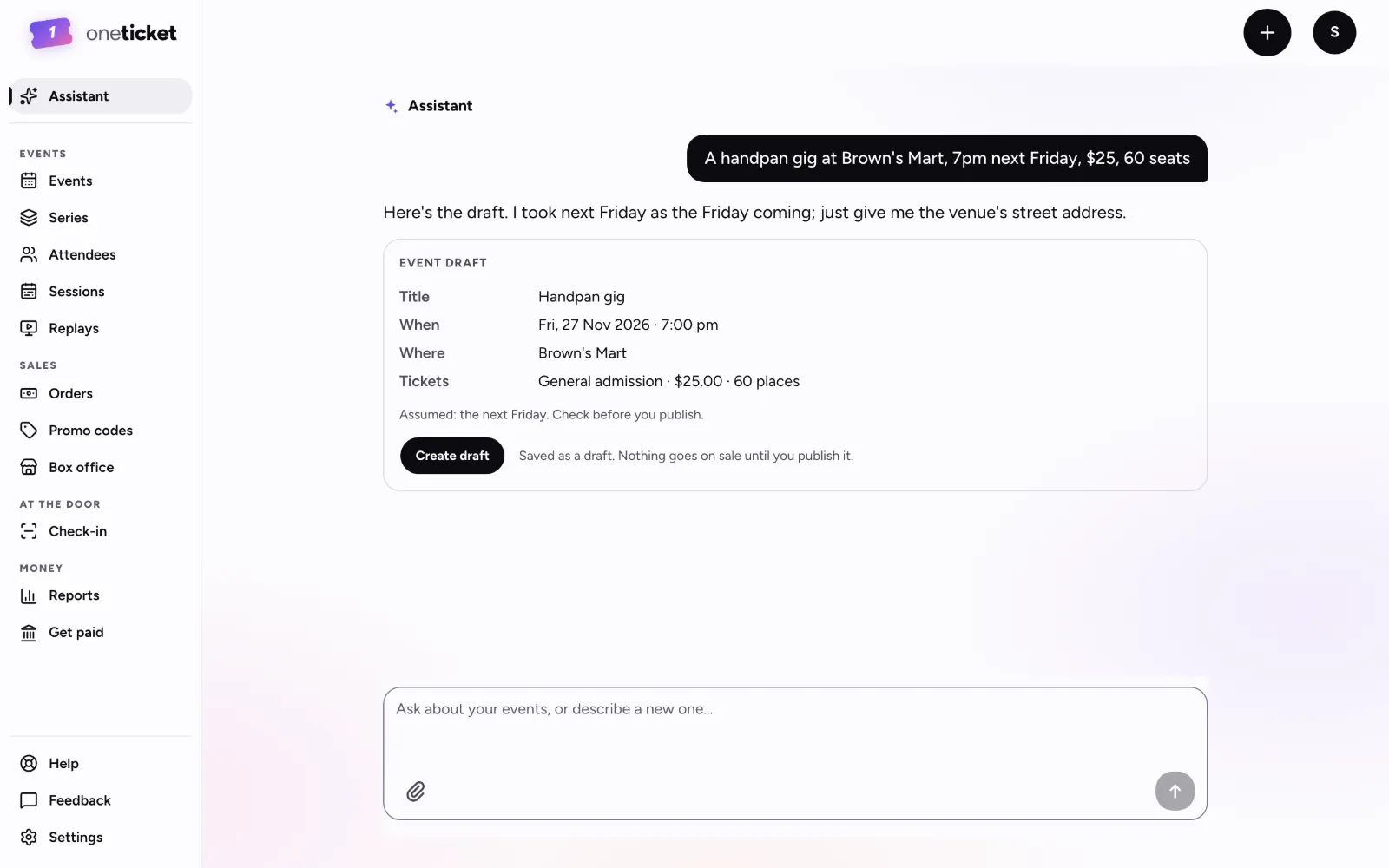
Type the night as you’d say it. The Assistant fills in what you told it, lists anything it assumed, and asks for what’s missing.
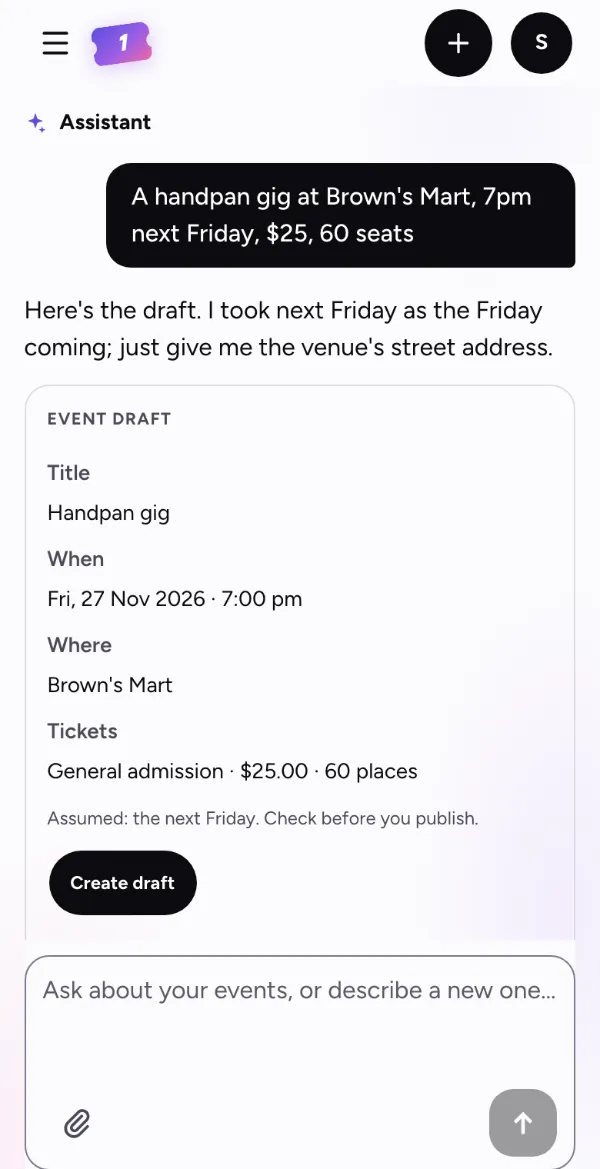
For example: A handpan gig at Brown’s Mart, 7pm next Friday, $25, 60 seats
Here’s the draft. I took next Friday as the Friday coming; just give me the venue’s street address.
Event draft
Assumed: the next Friday. Check before you publish.
Saved as a draft. Nothing goes on sale until you publish it.
10 messages a month on Free, 100 on Pro and 300 on Team.
How it works
Type it as you’d tell a friend, or attach the poster as a photo or a PDF of up to two pages. It reads the title, date, time, venue and prices off it.
Title, when, where, ticket types with prices and places, a line about it, a description and questions for buyers, from what you gave it. Anything it assumed is listed for you to check.
Create draft saves it as a draft. Open it in the editor, add a cover, check the refund policy and the look, then publish when you’re ready.
The writing
It reads the event first, so what it writes rests on your real date, place, tickets and refund policy, and on what you tell it.
Two to five short paragraphs in your own voice. Use this puts it on the event, after you confirm; nothing else on the event changes.
Paste what they wrote and get a short, polite reply to copy into your email. Asked for a refund, it says you’ll look into it rather than promising one. It never sends anything.
A short social post announcing your next event, or a refund policy in plain words, ready to paste.
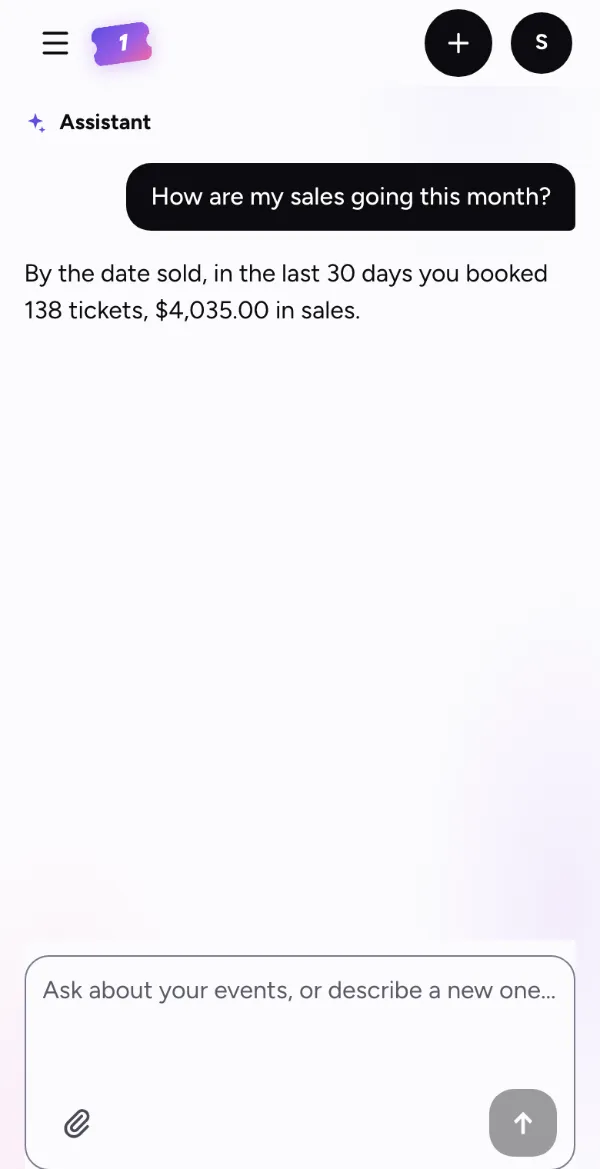
And when you want to know
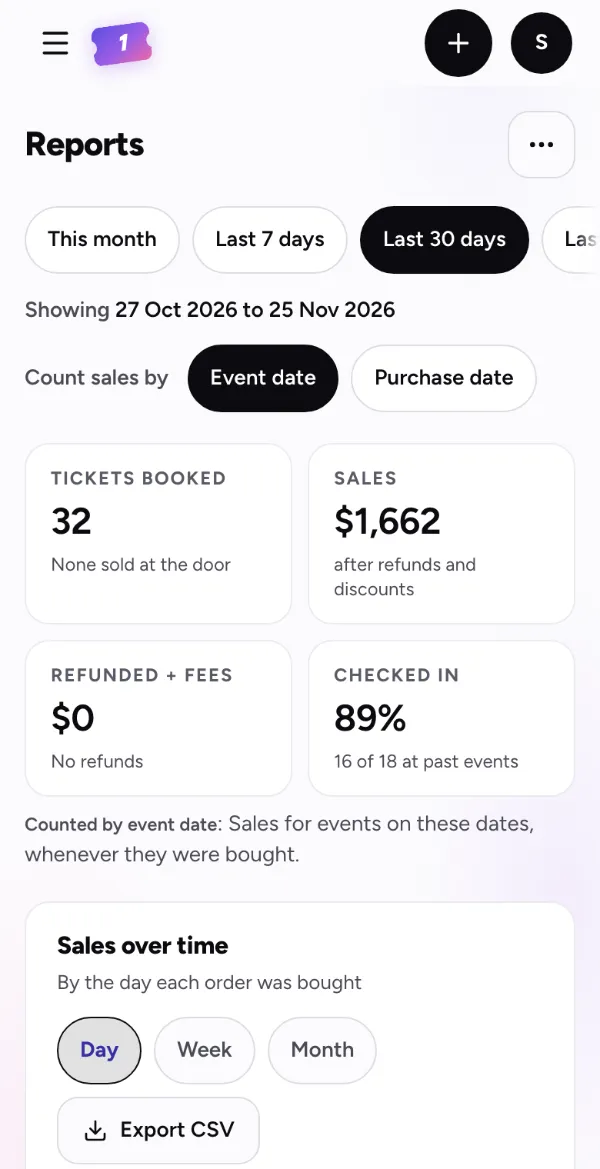
Ask in plain words. It looks the answer up in your own figures each time, the way the Reports page counts them.
It drafts it. Describe the event in a sentence, or attach a flyer, and the Assistant fills in the title, date and time, venue, ticket types, prices and places from what you gave it. Choose Create draft to save it as a draft, then check it in the editor and publish.
No. Nothing is saved until you say so. A drafted event is saved as a draft, and nothing goes on sale until you publish it. It never refunds, charges or emails anyone.
Yes. Attach an image or a PDF of up to two pages and ask it to fill in the event. Everything it read from the flyer is marked for you to check.
The cover picture, the refund policy, the look and who can see the event are yours to set in the editor. An event that repeats ("every Saturday for 8 weeks") is drafted with its pattern, and creating it makes a draft series; a pattern the editor cannot make, it says so.
10 messages a month on Free, 100 on Pro and 300 on Team. Pro and Team are open now: upgrade any time in Settings › Plan. Limited-time offer: A$1 for your first year (first 100 organisers), then A$29/month for Pro or A$79/month for Team. Cancel anytime.
Yes, on any plan: A$1 for every 10 messages, any number from 10 to 5,000. They never expire, and are used once your month’s messages are gone. Your organiser’s owner buys them in Settings, under Plan. Once the month’s and any extra messages are all used, the Assistant shows the owner a Buy messages button and tells anyone else to ask the owner.
Claude, made by Anthropic. Your messages, any flyer you attach and the event and sales details it looks up are sent to answer you.
In your organiser app, under Assistant.
10 messages a month on Free, 100 on Pro and 300 on Team.